Setting Up Notification Settings on the AboveTheGreenLine Discord Server

Become a Greenliner. Join Today

To stay up to date with the latest trade alerts, community updates, and strategy discussions, it’s important to enable the correct Notification Settings for the AboveTheGreenLine Discord Server. Discord allows for real-time notifications, making it one of the fastest and most reliable methods to receive critical trade and market updates.

Why Enable Notifications?

Discord notifications are instantaneous. When a post is made to a channel like #trading-chat, you’ll receive it within seconds—faster than emails or even some mobile apps. If you’re actively trading or following ATGL’s alerts and commentary, this is your best option for real-time awareness.

Step-by-Step Instructions to Enable Channel Notifications

Follow these simple steps to make sure you never miss a message in your favorite trading channel.

Step 1: Locate the AboveTheGreenLine Discord Server and Target Channel

AbovetheGreenLine Trading Channel
Figure 1: Discord server with #trading-chat selected.
  • Open the Discord app (desktop or mobile).
  • On the left-hand panel, locate the AboveTheGreenLine server icon.
  • Click to open the server and scroll through the list of channels.
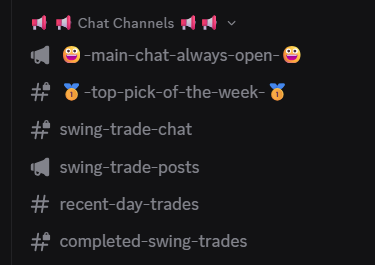
  • Find and highlight the 😃-main-chat-always-open-😃 channel—this is where market discussions and alerts are most frequent.

Below is a snapshot of the primary chat spaces inside the ATGL Discord server—especially 😃main-chat-always-open😃 for general discussion and #swing-trade-chat for active trade conversation, updates, and community insights
Step 2: Access Channel Notification Settings

AbovetheGreenLine Channel Notification Settings
Figure 2: Right-Click on #trading-chat → Notification Settings Option Highlighted
  • Right-click (or tap and hold on mobile) on the #trading-chat channel name.
  • From the dropdown menu, click or tap on “Notification Settings”.
  • This opens the settings panel for that specific channel.

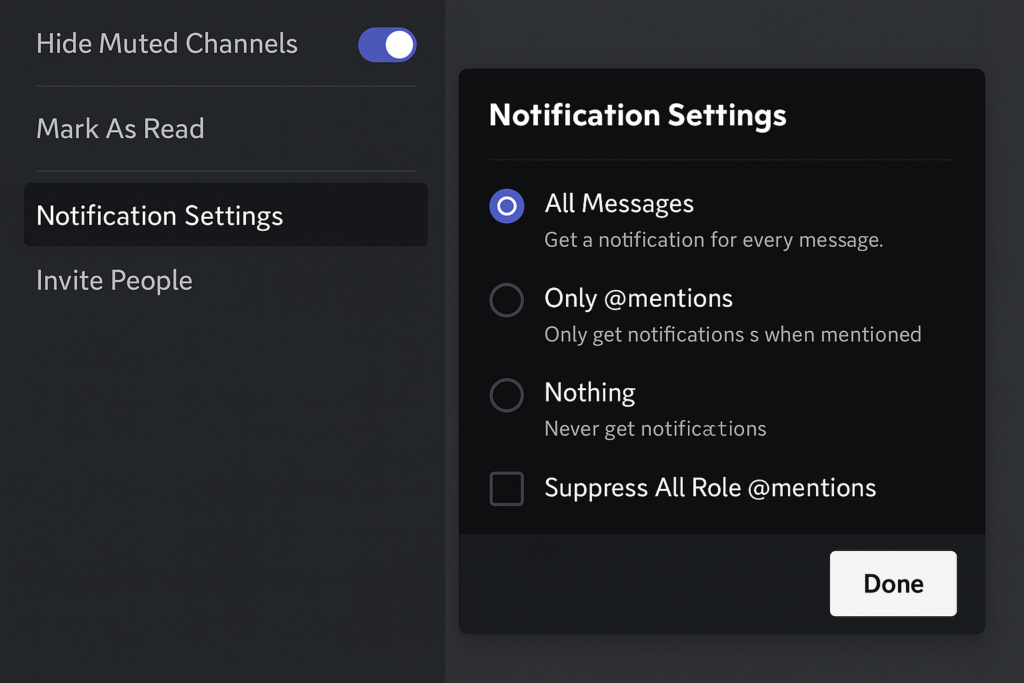
Step 3: Select “All Messages”

AbovetheGreenLine Channel Notification Options
Figure 3: Notification Options – All Messages Selected
  • In the channel-specific notification window, look for Notification Overrides.
  • Choose “All Messages” to ensure you are alerted for every post in the channel.
  • This will override your global settings and allow you to receive every update from #trading-chat

✅ Pro Tip: You can repeat this process for other high-value channels like #alerts, #featured-stock, or #general-discussion to stay connected with everything important on the server.
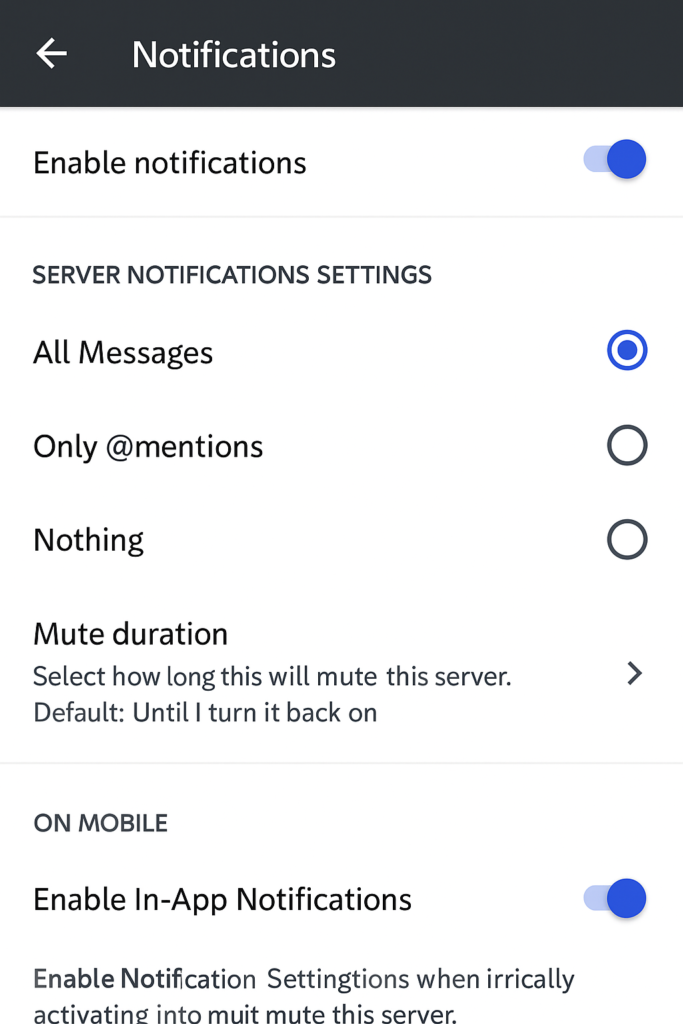
Step 4: Enable Discord Notifications on iPhone

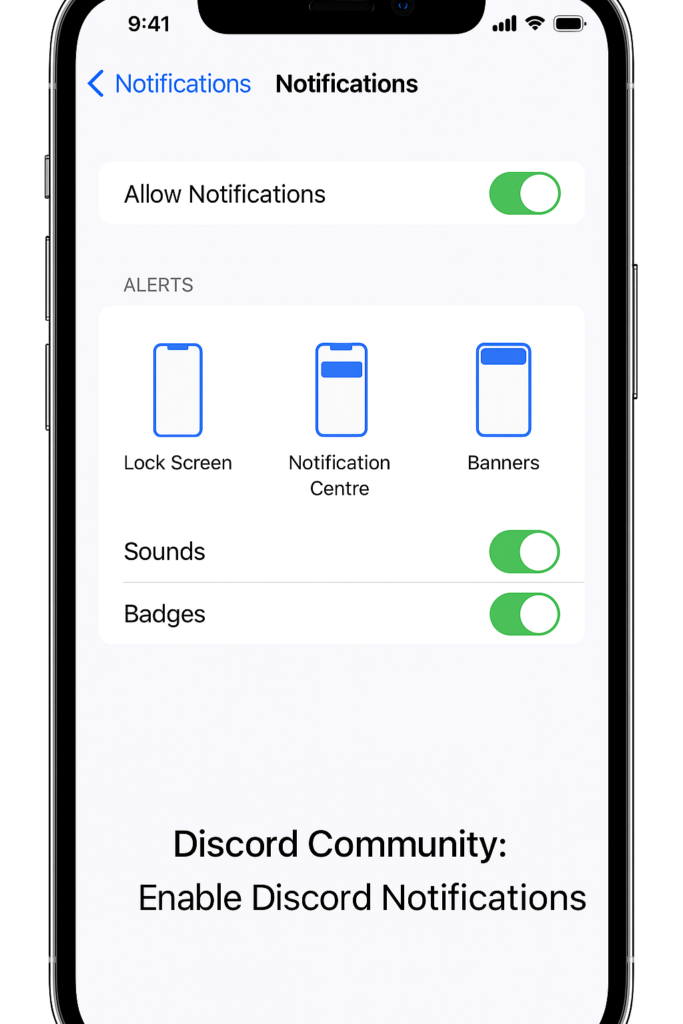
To ensure you receive real-time alerts on your iPhone, follow these steps:

  1. Open the Settings app on your iPhone.
  2. Scroll down and tap Notifications.
  3. In the list of apps, select Discord.
  4. Make sure Allow Notifications is toggled on.
  5. Under Alerts, enable your preferred options: Lock ScreenNotification Center, and Banners.
  6. Optionally, turn on Sounds and Badges for enhanced visibility.
iPhone Notifications Settings
Figure 4: iPhone Notification Settings

Step 5: Enable Discord Notifications on Android

To receive real-time alerts on your Android device, follow these steps:

  1. Open the Settings app on your Android phone.
  2. Tap Apps or Apps & notifications (varies by device).
  3. Scroll through the list and select Discord.
  4. Tap Notifications.
  5. Ensure All Discord notifications are toggled on.
  6. Customize alerts by enabling options like Pop-upSound, or Vibration, depending on your preference.
Android Notification Settings
Figure 5: Android Notification Settings

Final Thoughts

Customizing your notification settings is a one-time step that can dramatically increase your responsiveness to important trading insights and alerts. If you’re relying on ATGL’s technical analysis or weekly picks, make sure Discord is set up correctly—it’s your fastest and most reliable line of communication.

If you need assistance or would like someone to review your settings, don’t hesitate to post in #support or reach out to a moderator.